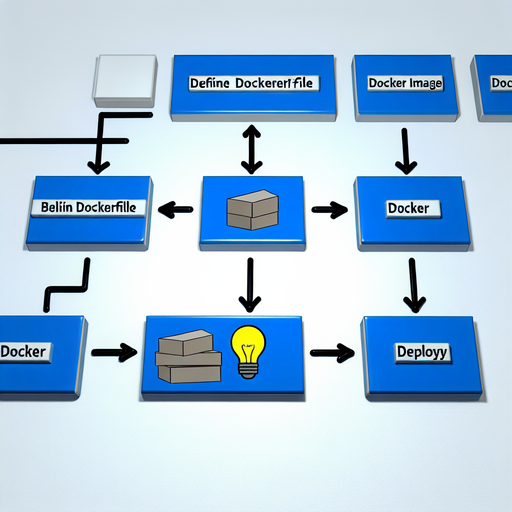
Nextcloud is a popular open-source file sharing and collaboration platform that allows you to securely store, sync, and share your files. One of the easiest ways to deploy Nextcloud is through Docker, a platform that allows you to package applications into containers, making it easy to run and distribute them across different environments.
In this guide, we will walk you through the process of installing Nextcloud on Docker. By following these steps, you will be able to set up a Nextcloud instance quickly and easily, allowing you to take advantage of all the features that this powerful platform has to offer.
Get Nextcloud with 1 TB of storage for just up to €3.99 per month.
Try it now for one month free and risk-free.
Step 1: Install Docker
Before you can install Nextcloud on Docker, you will need to have Docker installed on your system. Docker is available for a variety of operating systems, including Windows, macOS, and Linux. You can check the official Docker documentation for instructions on how to install Docker on your specific operating system.
Step 2: Set Up a Docker Compose File
Next, you will need to create a Docker Compose file that will define the services needed to run Nextcloud. Here is an example Docker Compose file that you can use to set up Nextcloud:
„`
version: ‚3‘
services:
db:
image: mariadb
command: –transaction-isolation=READ-COMMITTED –binlog-format=ROW
restart: always
volumes:
– db_data:/var/lib/mysql
environment:
MYSQL_ROOT_PASSWORD: example
MYSQL_PASSWORD: example
MYSQL_DATABASE: nextcloud
MYSQL_USER: nextcloud
app:
image: nextcloud
ports:
– 8080:80
restart: always
volumes:
– nextcloud_data:/var/www/html
depends_on:
– db
environment:
NEXTCLOUD_TRUSTED_DOMAINS: ‚localhost‘
MYSQL_HOST: db
volumes:
db_data:
nextcloud_data:
„`
This Docker Compose file defines two services: `db`, which uses the MariaDB image to provide the database backend for Nextcloud, and `app`, which uses the Nextcloud image to run the Nextcloud application. Make sure to replace the values for `MYSQL_ROOT_PASSWORD`, `MYSQL_PASSWORD`, and `MYSQL_USER` with your desired values.
Step 3: Start the Nextcloud Container
Once you have created the Docker Compose file, you can start the Nextcloud container by running the following command in the directory where the Docker Compose file is located:
„`
docker-compose up -d
„`
This command will start the Nextcloud container in detached mode, allowing you to continue using your terminal while the container runs in the background. Once the container is up and running, you can access Nextcloud by navigating to `http://localhost:8080` in your web browser.
Step 4: Set Up Nextcloud
Finally, you will need to set up Nextcloud by creating an admin account and configuring the storage options. Follow the on-screen instructions to complete the setup process, and you will soon be ready to start using Nextcloud to store, sync, and share your files.
Conclusion
In this guide, we have walked you through the process of installing Nextcloud on Docker. By following these steps, you can quickly and easily set up a Nextcloud instance and start taking advantage of all the features that this powerful platform has to offer. Whether you are looking to collaborate on files with colleagues or access your files from anywhere, Nextcloud on Docker is a convenient and efficient solution.